
Codex Phone Connect
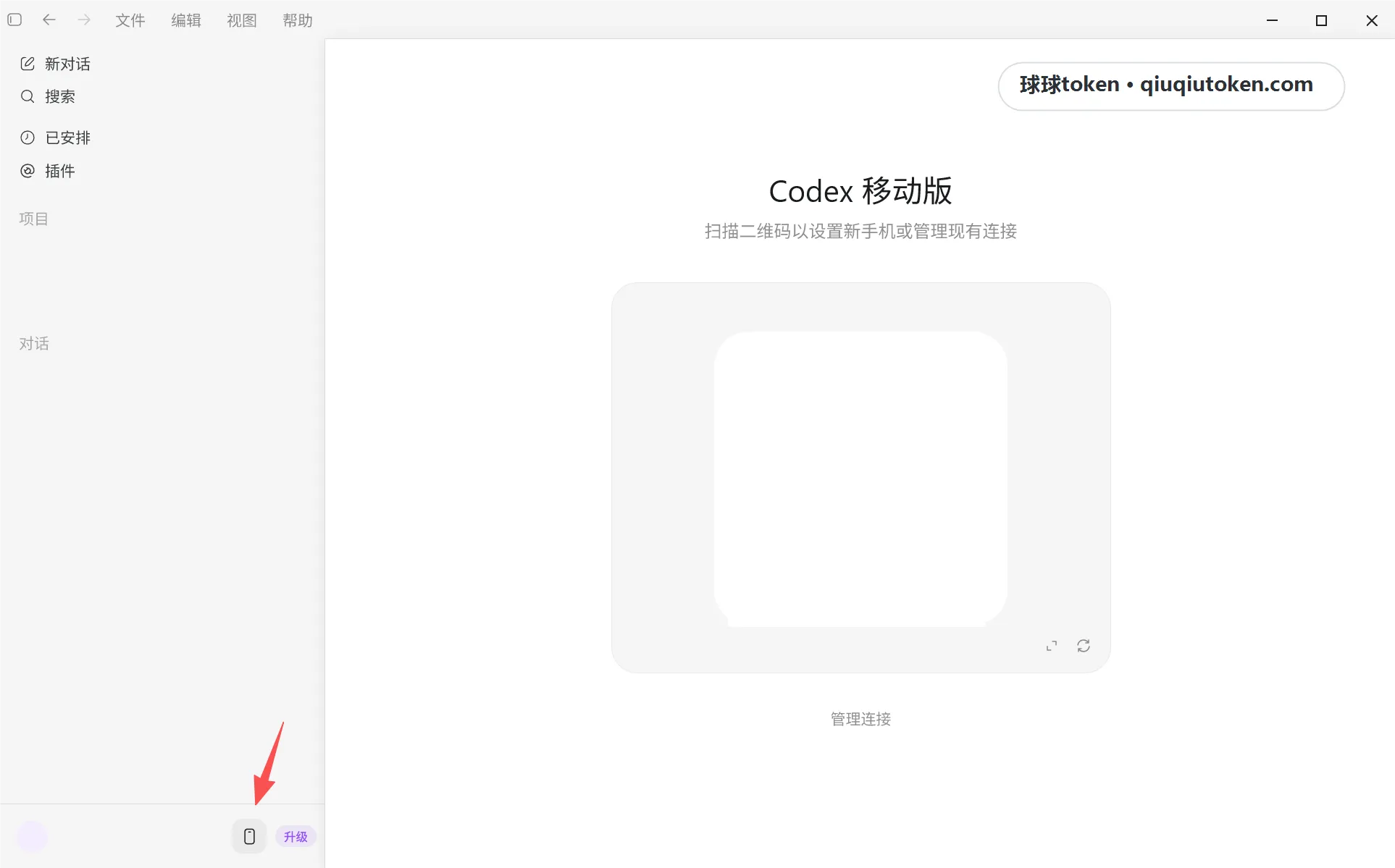
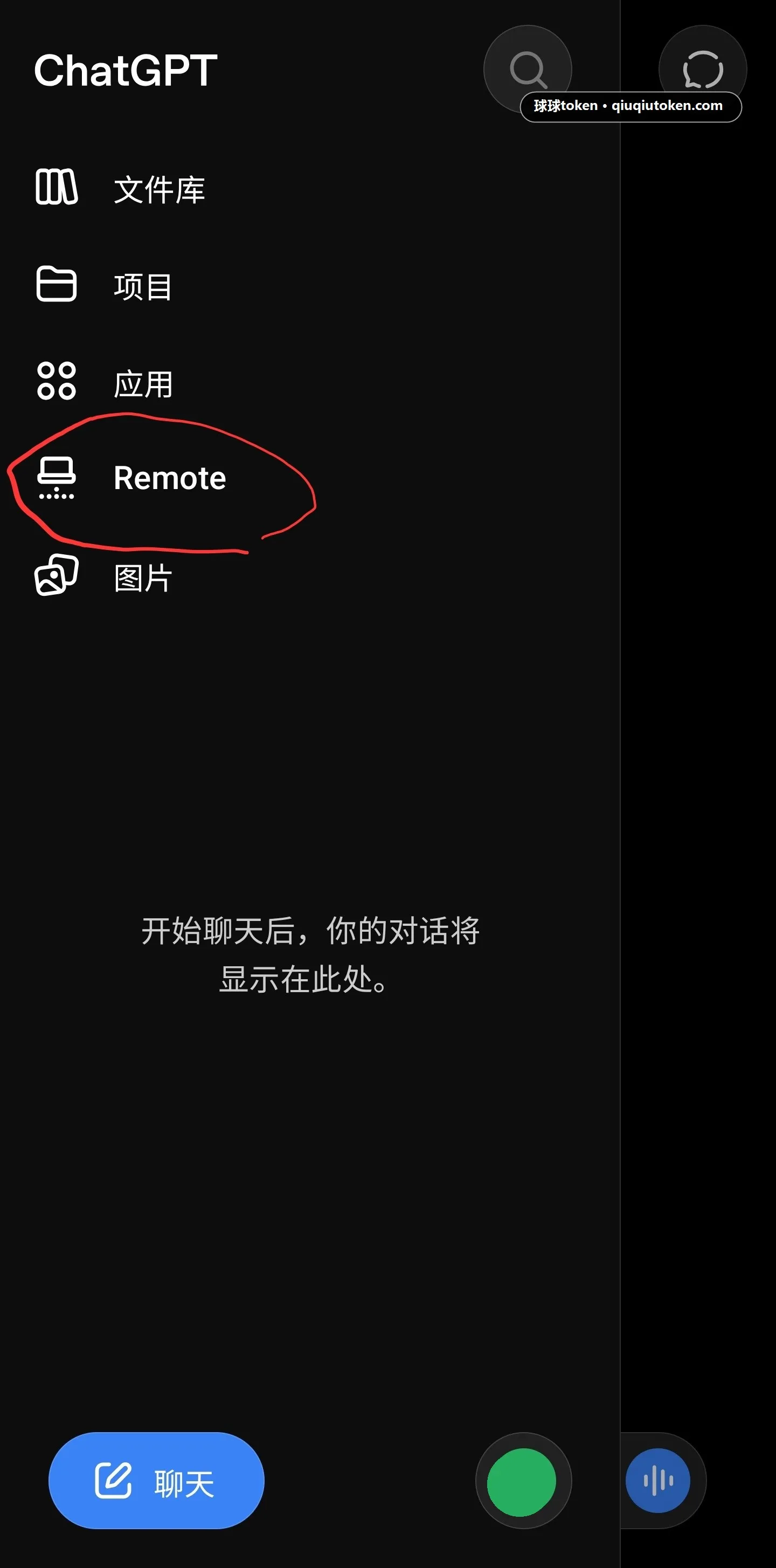
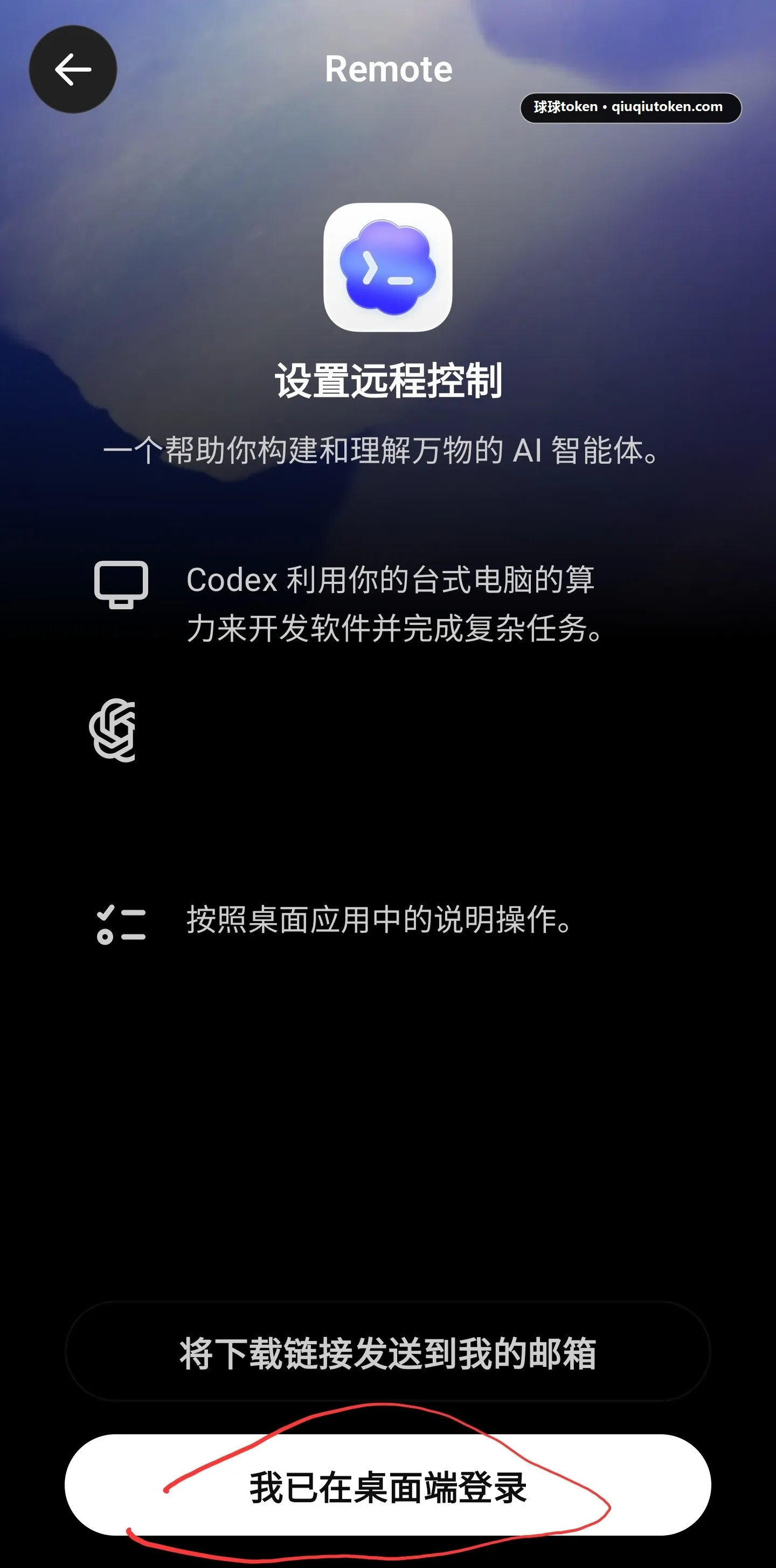
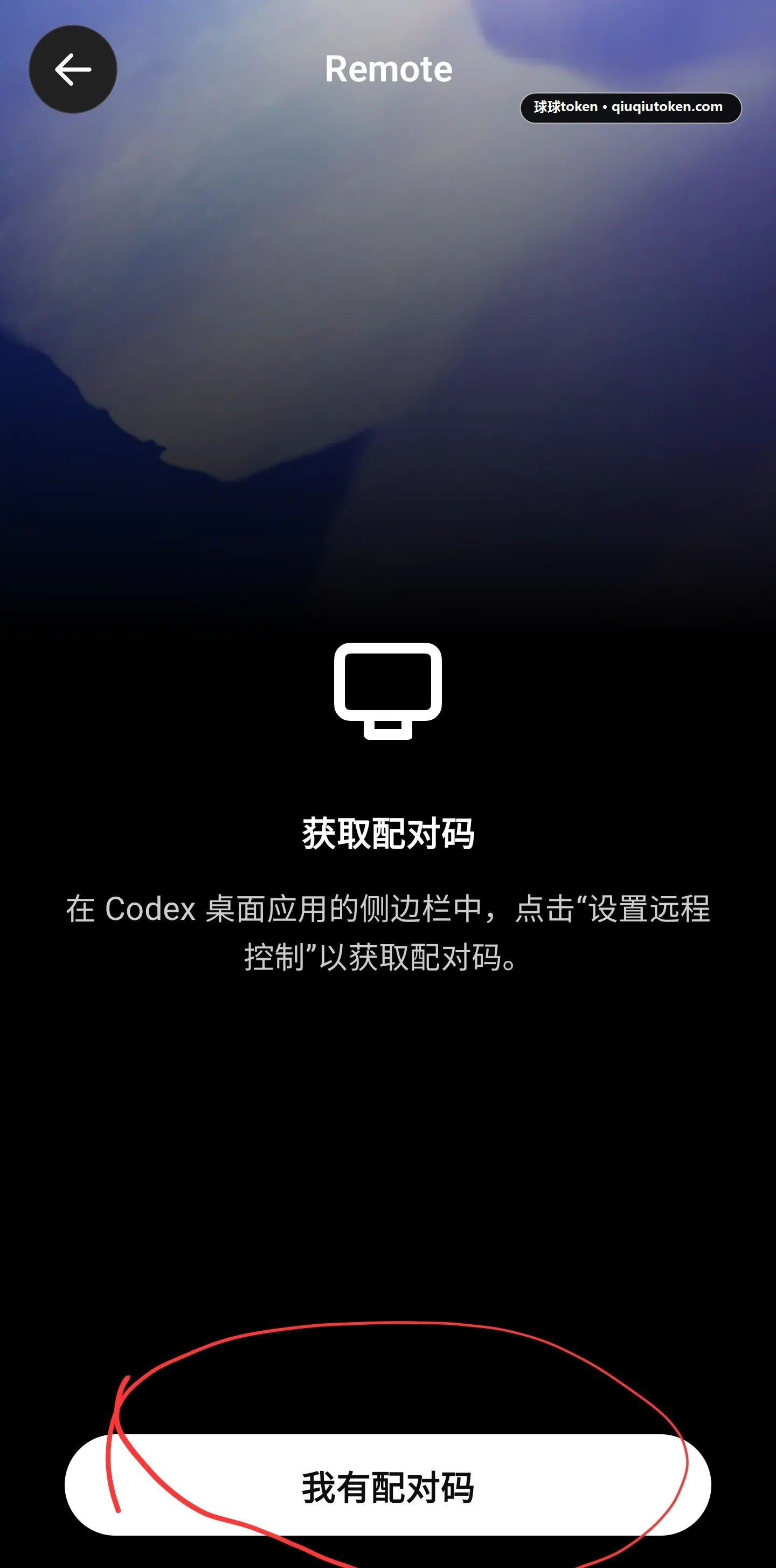
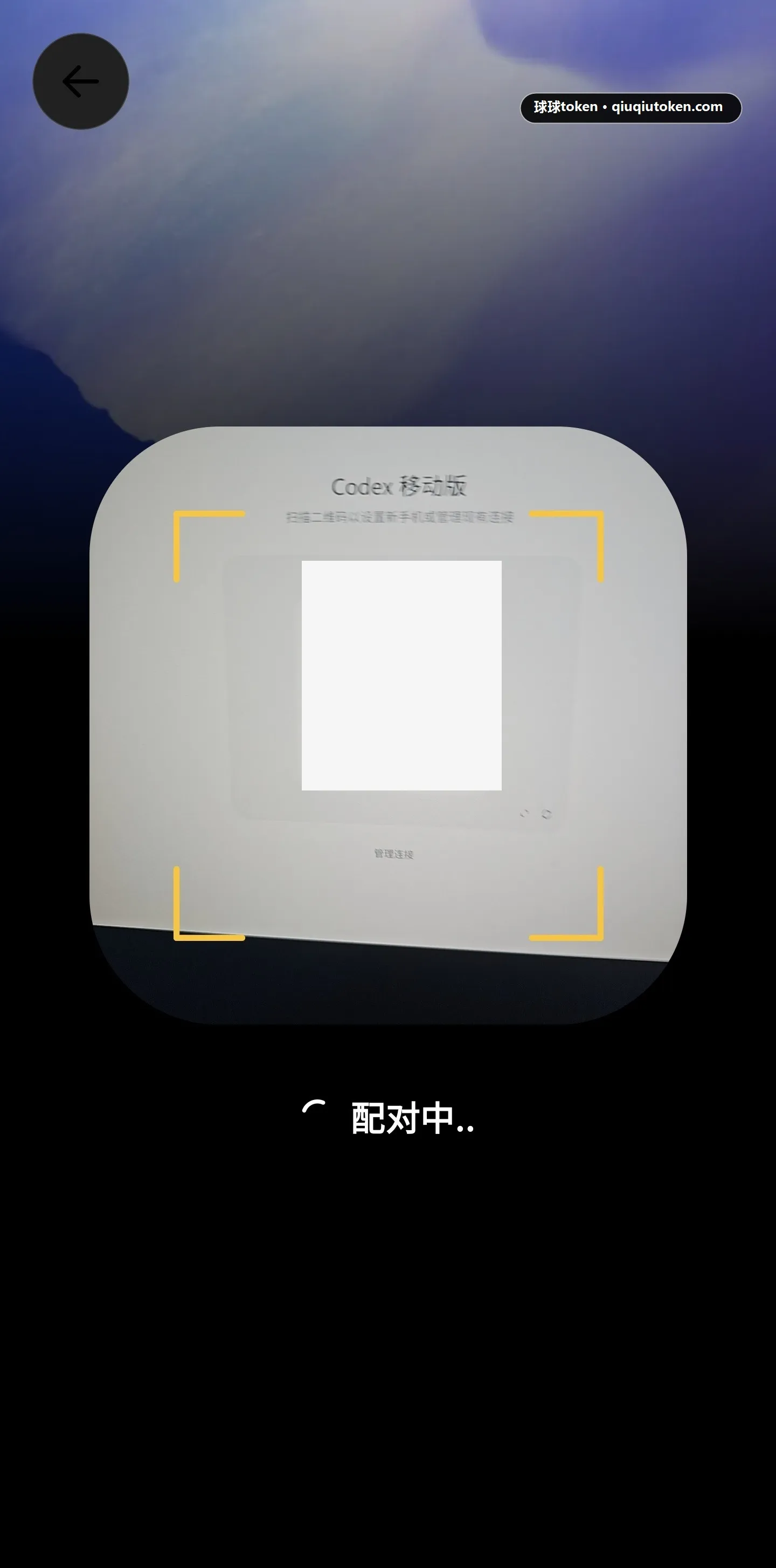
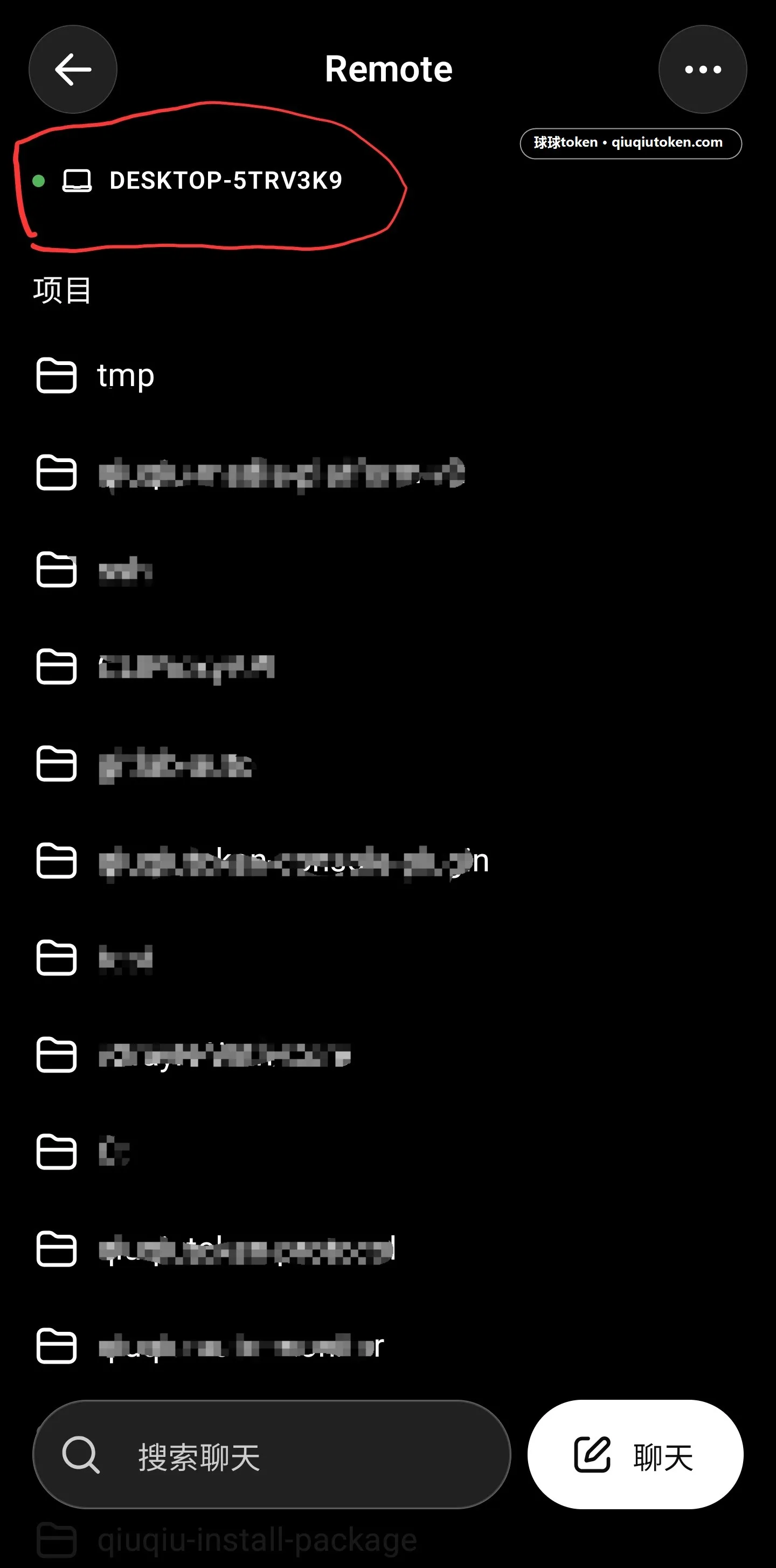
Pair Codex Desktop with the ChatGPT mobile app so you can send tasks to Codex from your phone.
Keep these prerequisites minimal:
- Codex Desktop is already installed and can be opened.
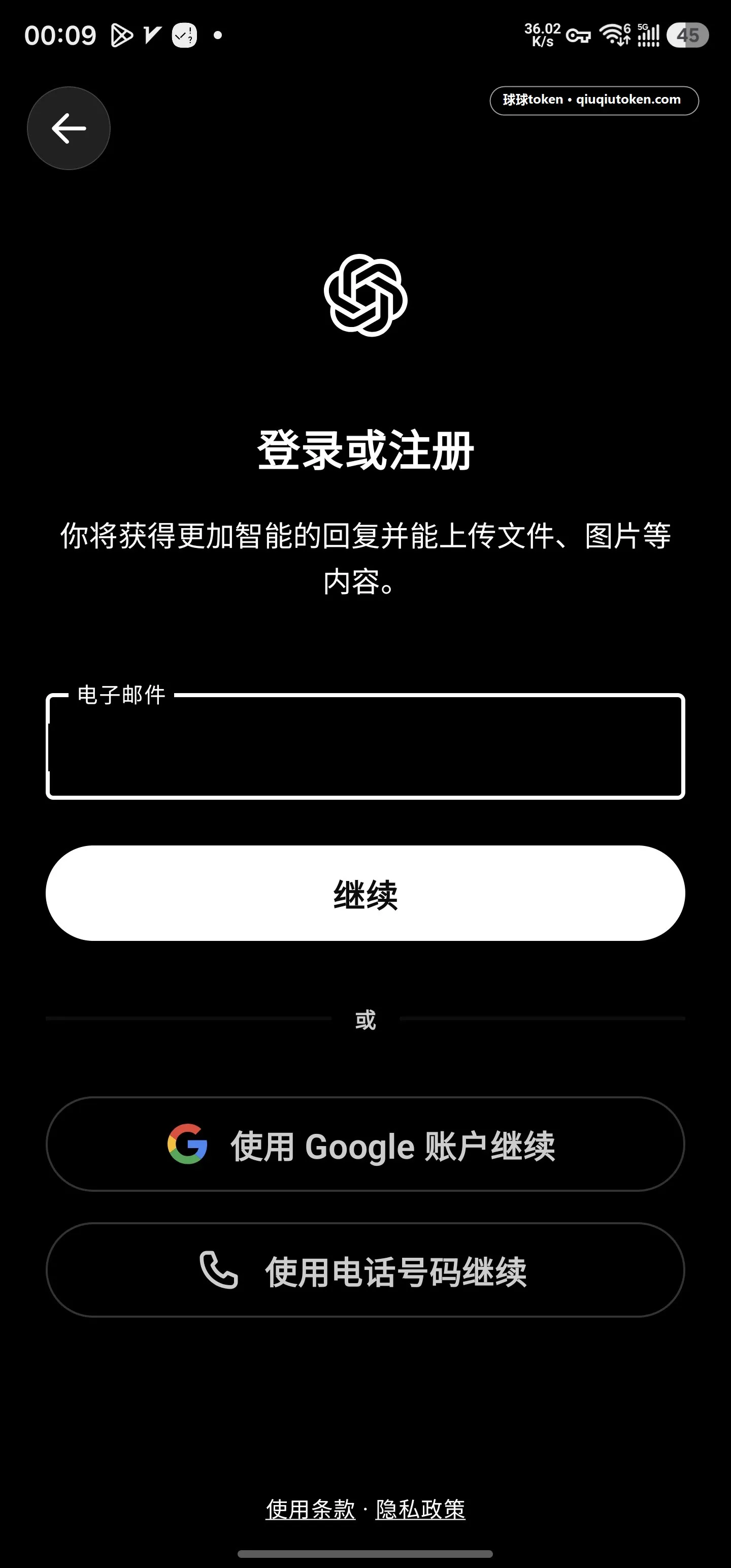
- ChatGPT is installed on your phone, and the same account is signed in on both devices.
- If you want only the desktop app to use a proxy, your usual proxy tool is already set up on Windows.
Advanced: Route only Codex Desktop through a proxy
Section titled “Advanced: Route only Codex Desktop through a proxy”On Windows, switch your usual proxy tool to rule mode so only Codex Desktop hits the local HTTP proxy while other apps stay as close to normal as possible.
Then set the current user’s environment variables to:
HTTP_PROXY = http://127.0.0.1:<proxy-port>HTTPS_PROXY = http://127.0.0.1:<proxy-port>
Fully quit Codex Desktop, then open it again.
If you use global routing or TUN mode, QQ / WeChat images can sometimes be affected. Rule mode plus environment variables usually reduces that impact. The goal is to change only Codex Desktop’s outbound path, not the whole machine’s.
To verify, send one Codex request first, then check whether QQ / WeChat images load normally; if there is still obvious impact, recheck rule mode and the <proxy-port> value.