
Codex Mobile
This guide shows how to connect Codex on your phone to Codex Desktop on your computer. After pairing, the phone can show your desktop device and project list, so you can open a desktop project from the mobile app.
Prerequisites
- You have a ChatGPT account that works on both your phone and computer.
- Codex Desktop is installed and opens on your computer. For installation and base setup, see Codex Desktop.
- CC Switch is installed and opens on your computer. For base setup, see CC Switch Quick Config.
- Both your phone and computer have internet access.
1. Check CC Switch Settings
1. Open CC Switch settings
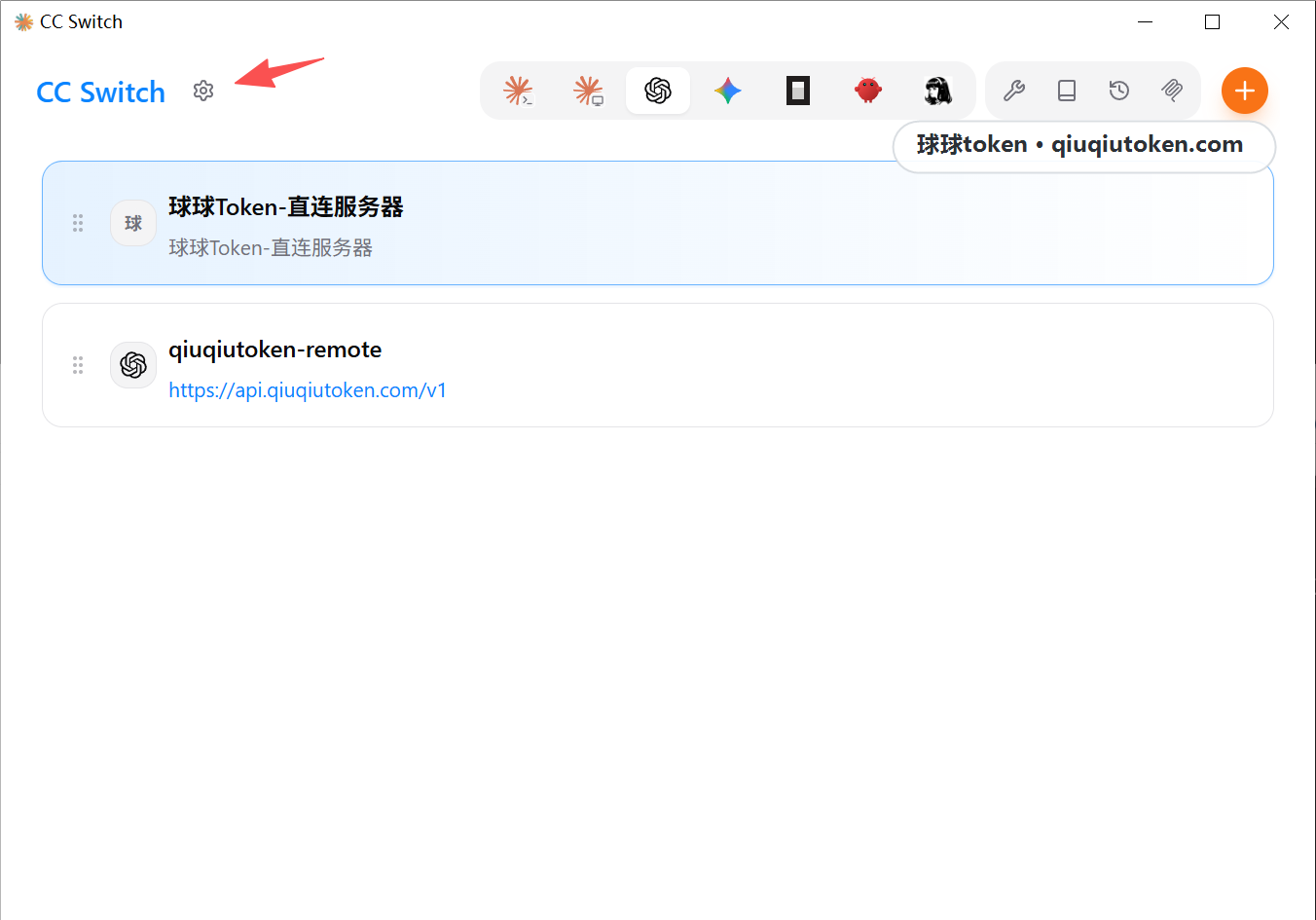
Open CC Switch, then click the settings gear on the main screen.
2. Enable Codex-related switches
On the settings page, confirm that the Codex app enhancement switches are enabled, especially:
- Keep official login when switching third-party providers
- Unified Codex session history
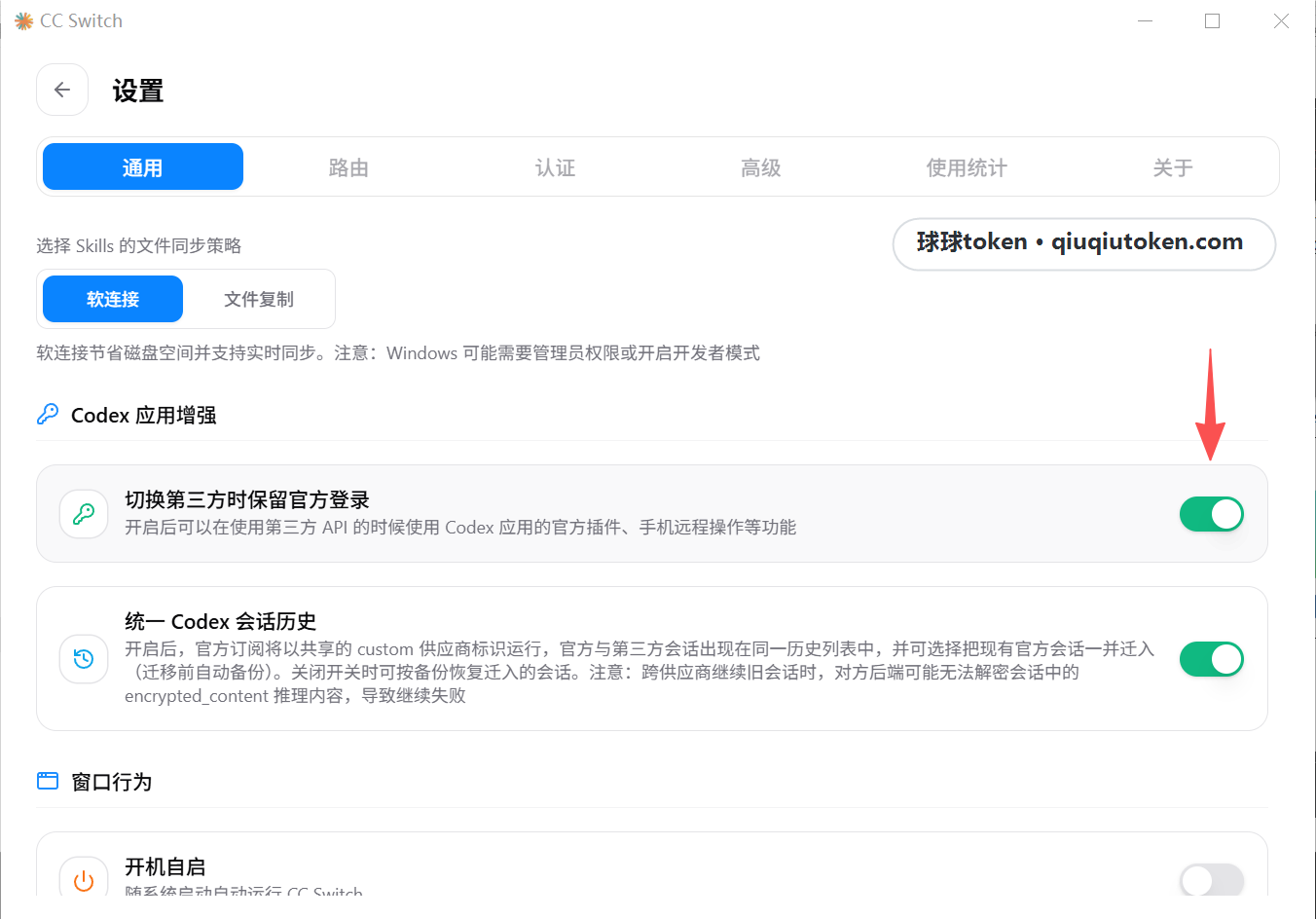
These switches help keep the Codex login state stable and make the Codex session history consistent across the phone and desktop.
2. Sign In to Codex Desktop
3. Sign in with ChatGPT
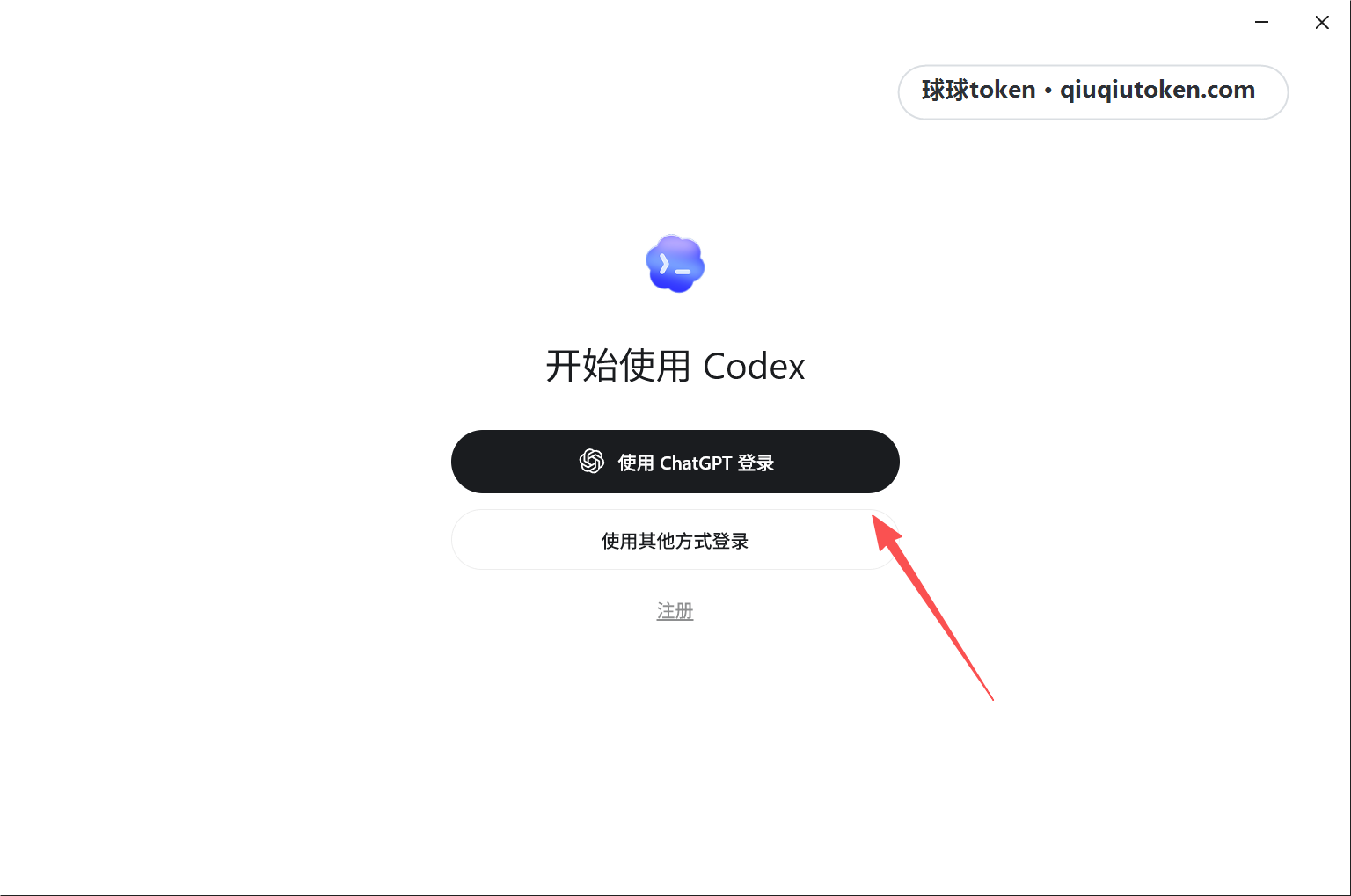
Open Codex Desktop. On the sign-in page, choose "Sign in with ChatGPT".
4. Enter your email
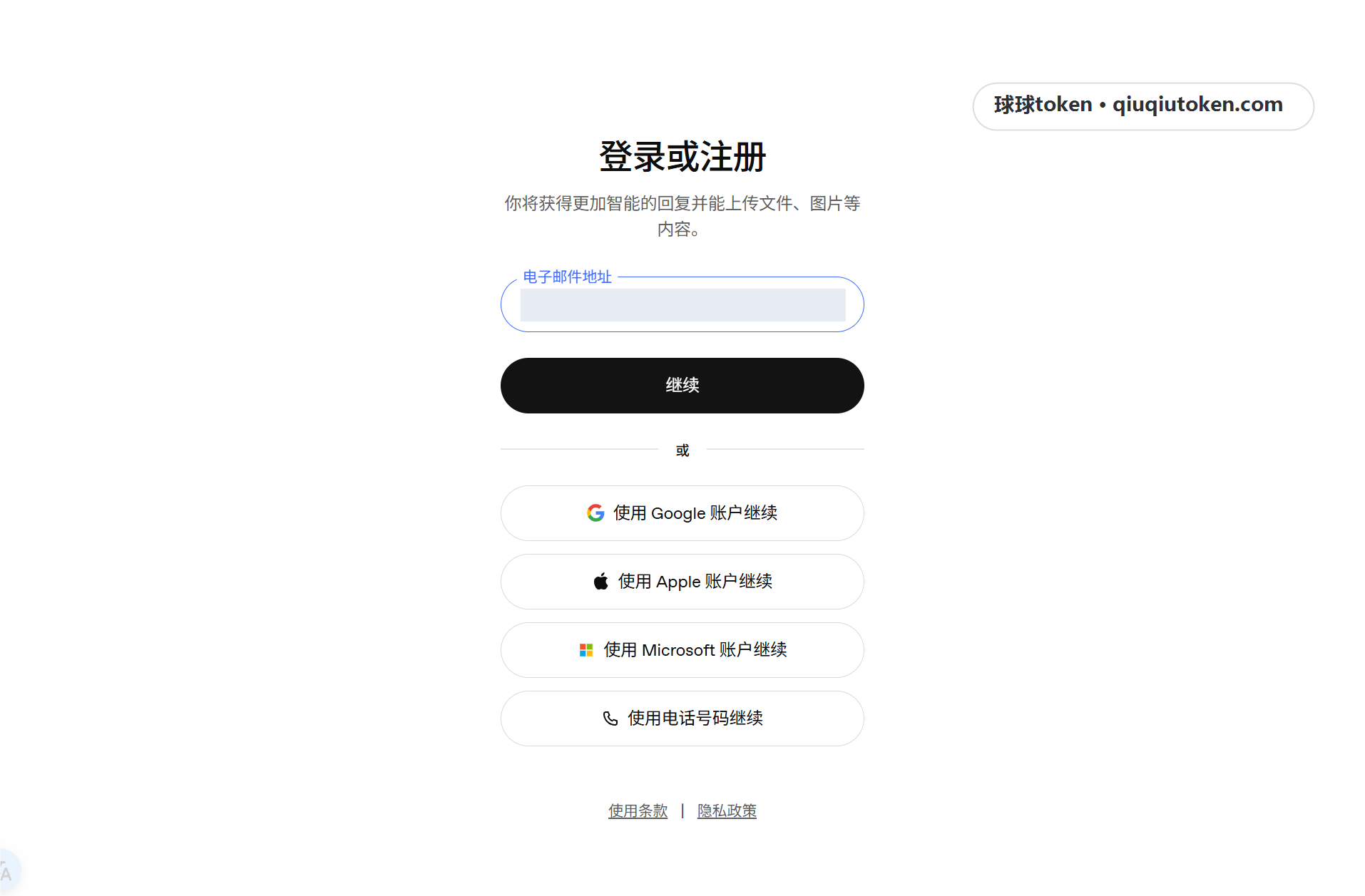
Enter the email address for your ChatGPT account, then finish signing in.
3. Open the Desktop Pairing Code
5. Open the Codex Mobile QR code page
After Codex Desktop is signed in, click the phone icon in the lower-left corner to open the "Codex Mobile" QR code page.
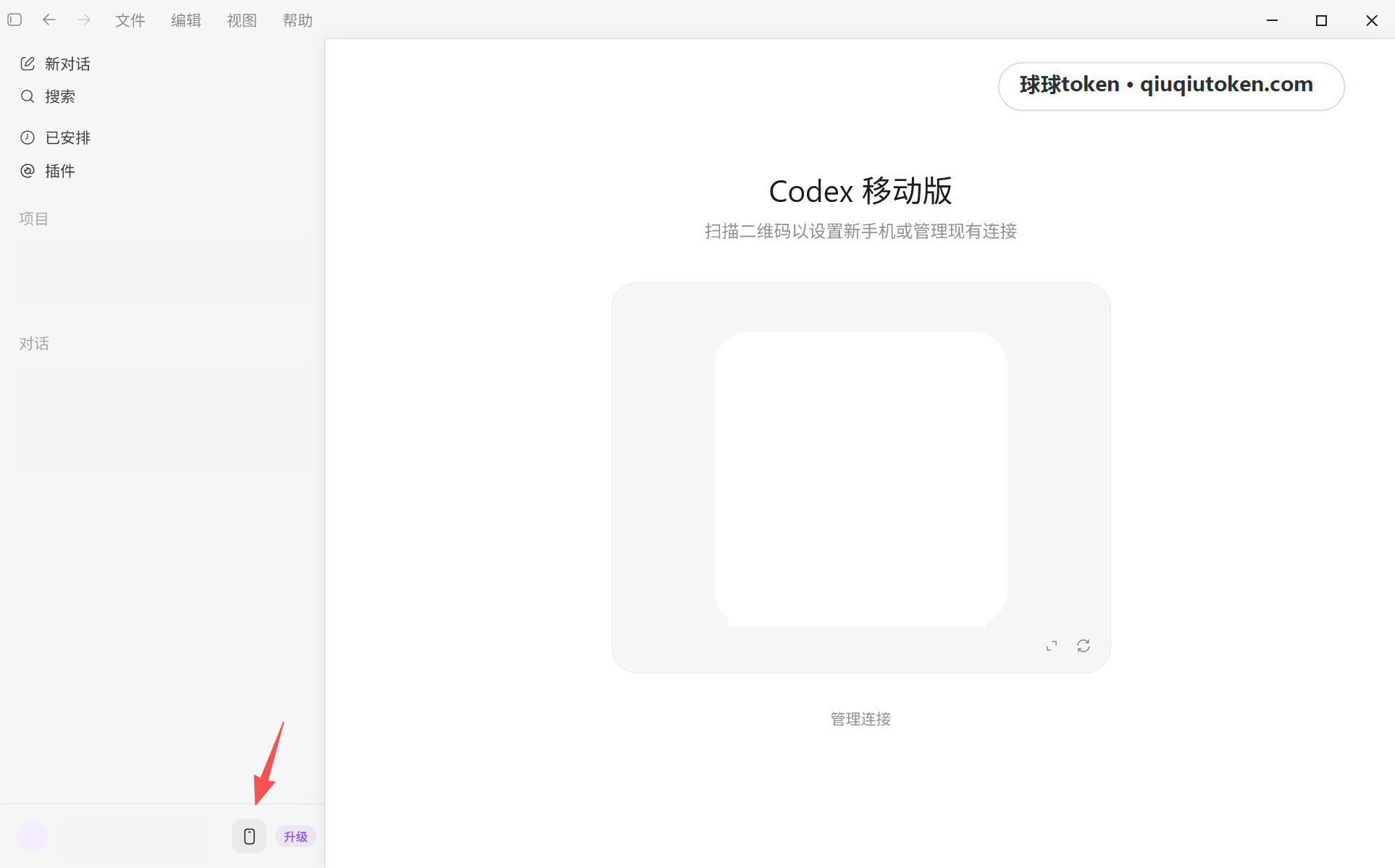
Keep this QR code page open. You will scan it from your phone.
4. Connect from Your Phone
6. Sign in on your phone
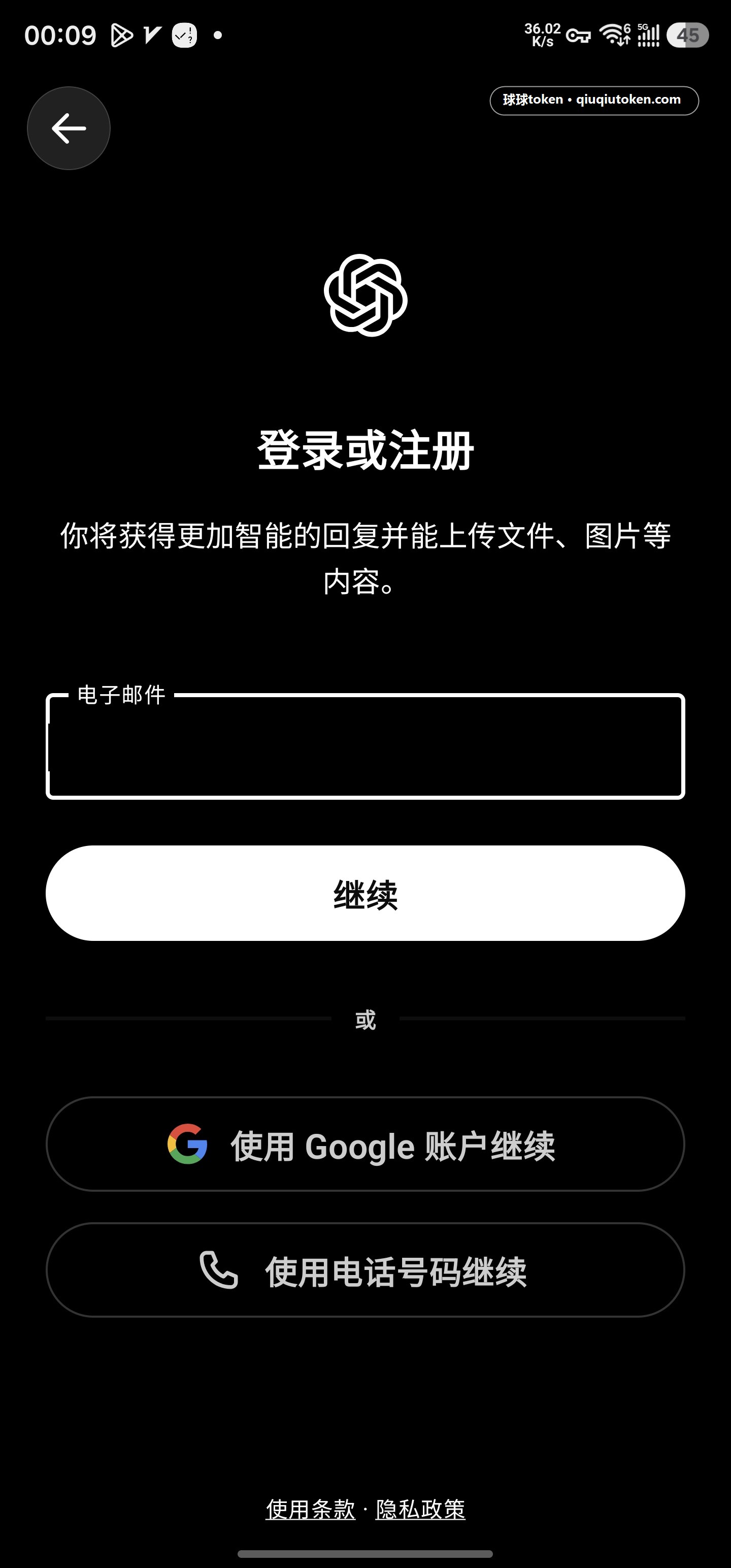
Open ChatGPT on your phone and sign in to the same ChatGPT account used on the computer.
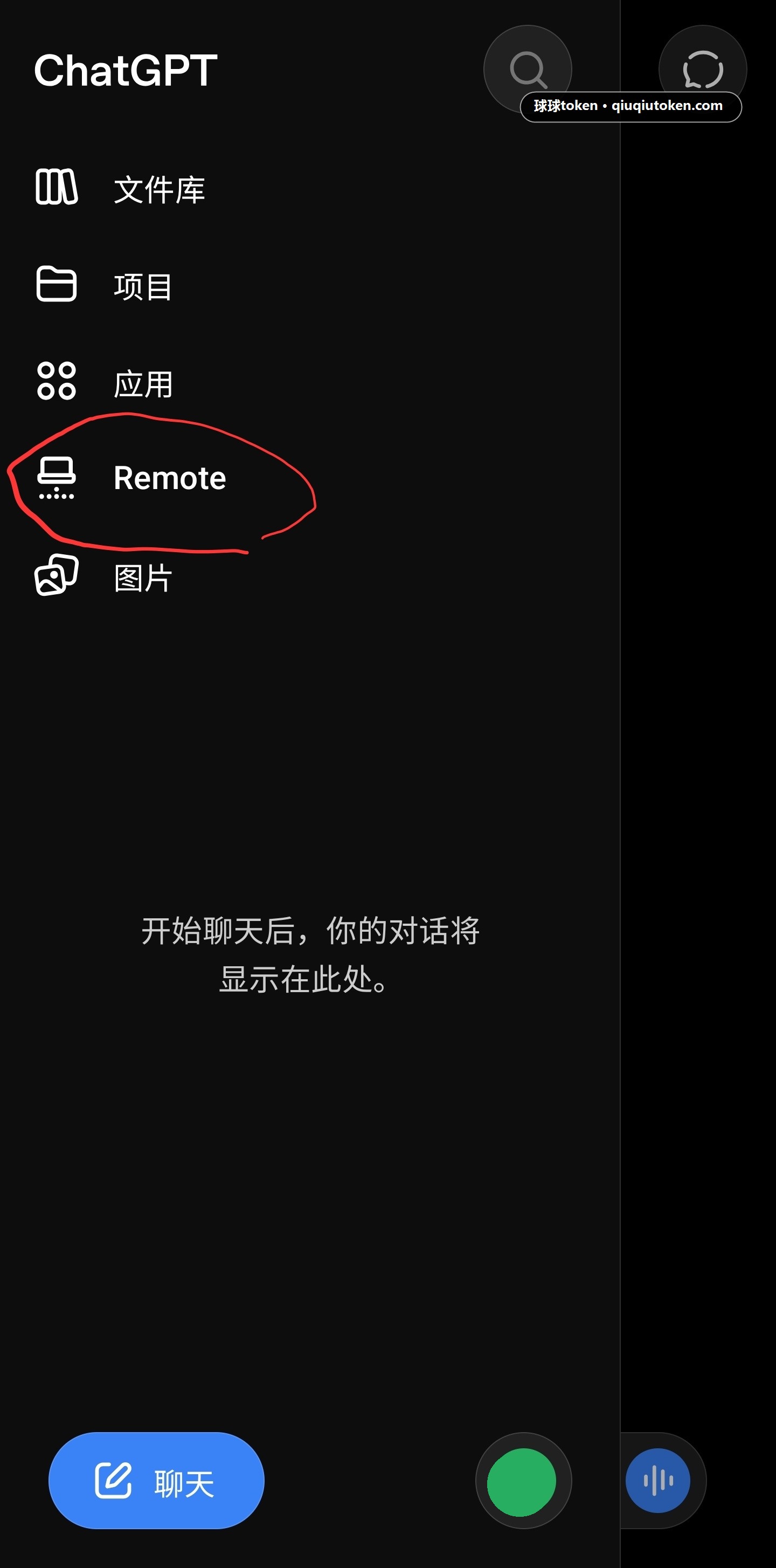
7. Open Remote
Open the ChatGPT sidebar, then enter Remote.
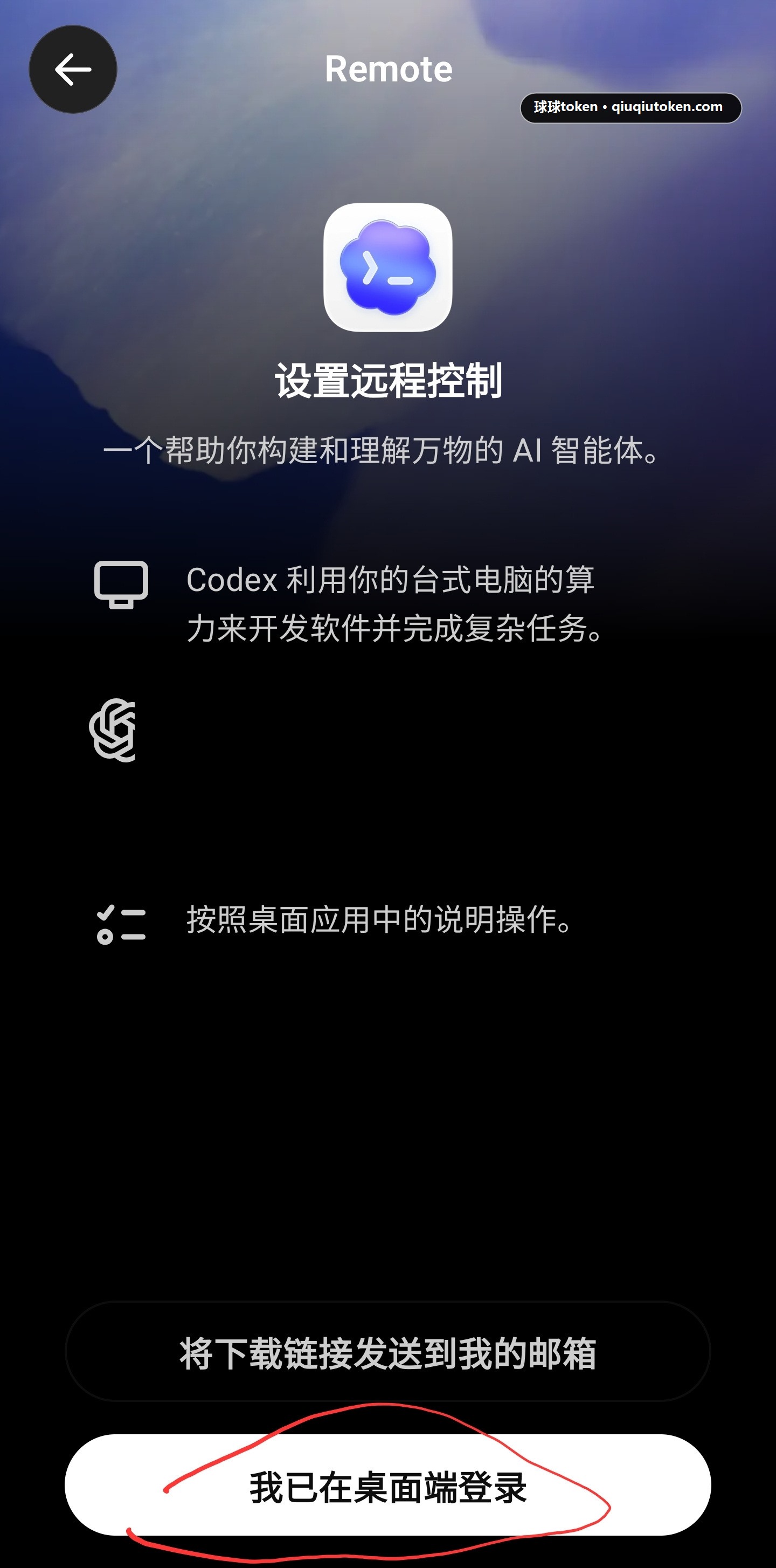
8. Confirm desktop sign-in
Tap "I already signed in on desktop".
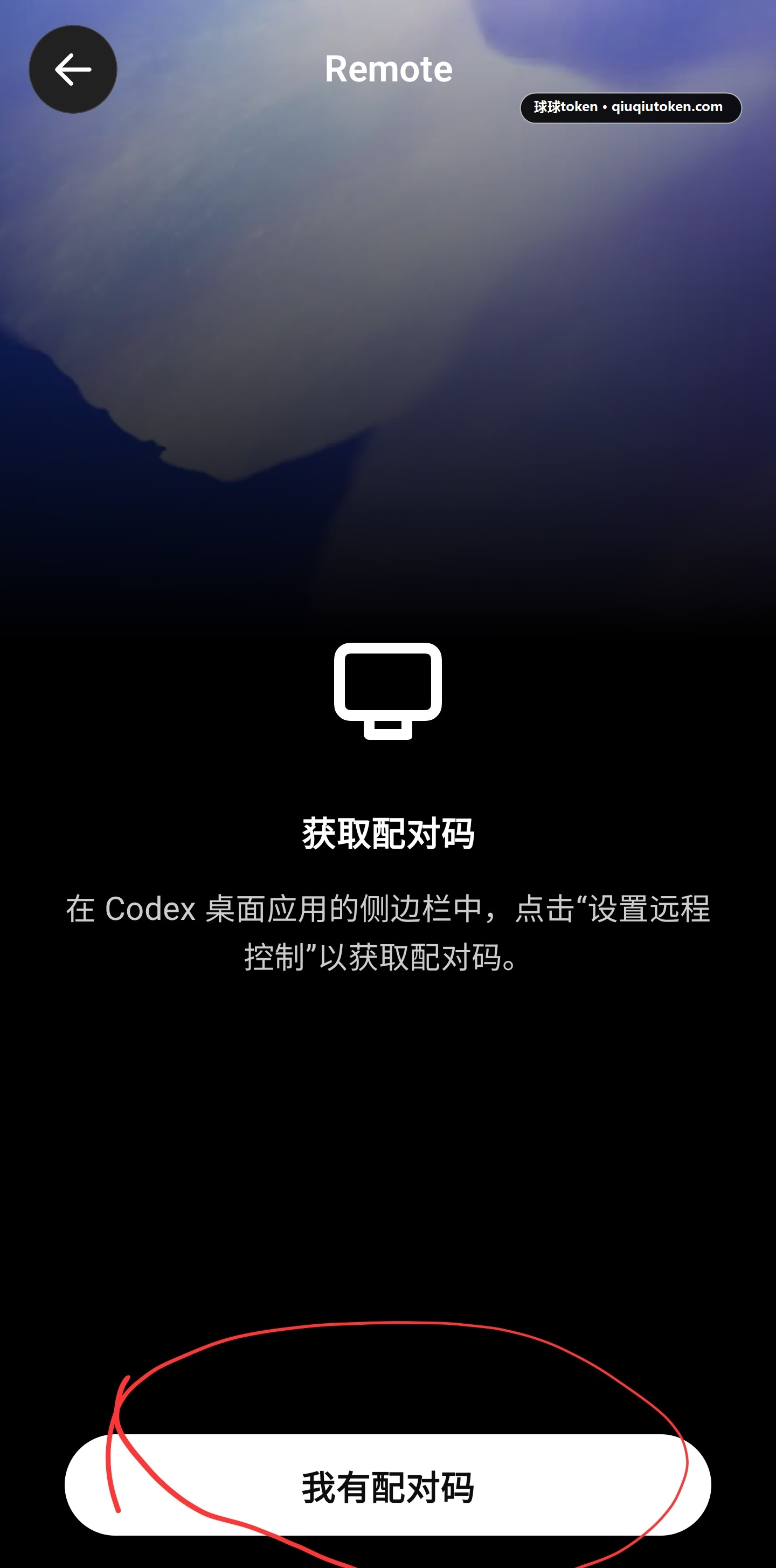
9. Choose pairing code
Tap "I have a pairing code".
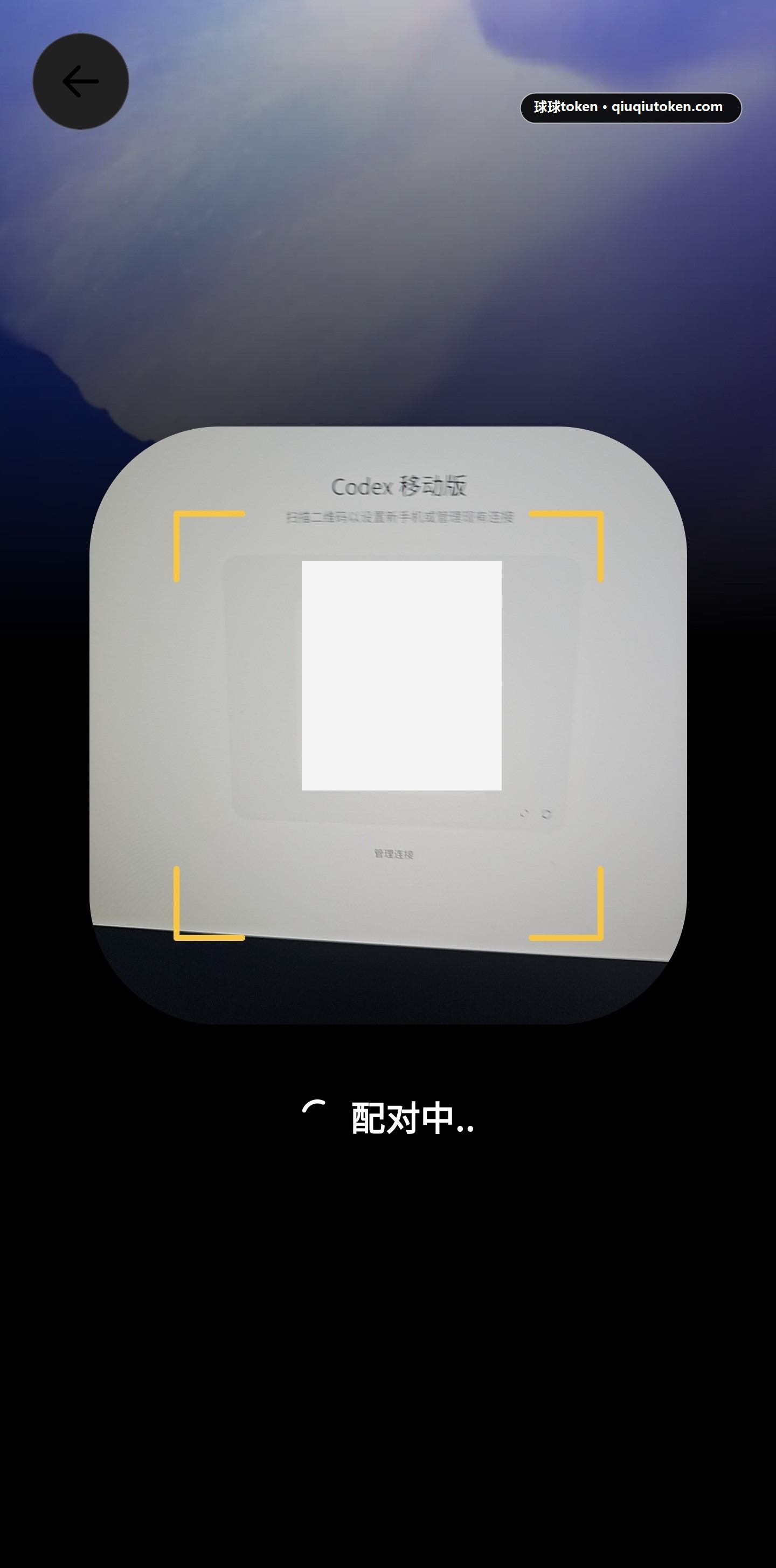
10. Scan the code
Use your phone to scan the QR code shown in Codex Desktop, then follow the phone prompts to complete pairing.
5. Verify the Connection
11. Check the desktop device and project list
When your phone shows the desktop device and project list, the connection is ready.
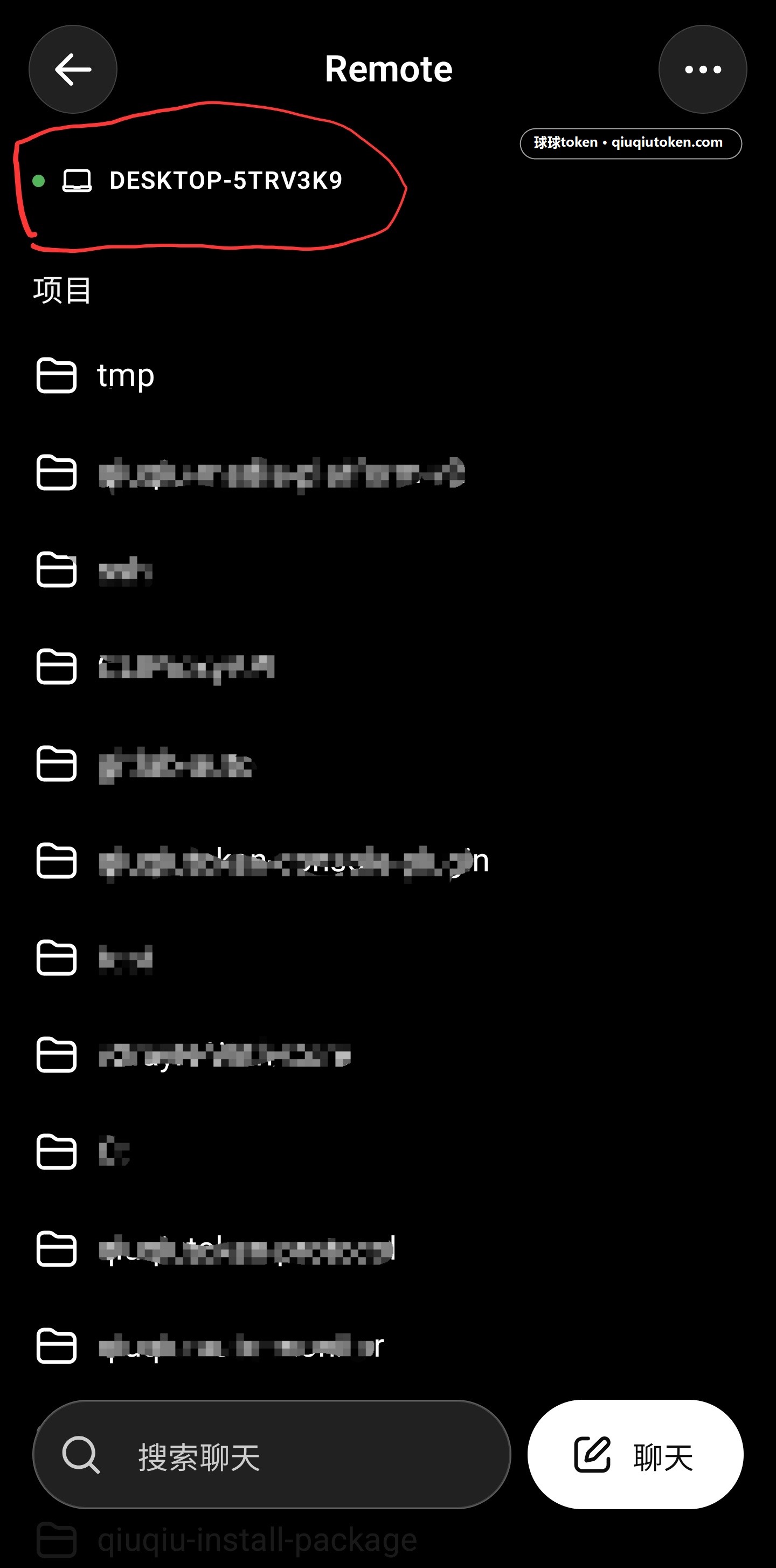
You can select the desktop device on your phone, then open the project you want to use.
FAQ
- Remote does not appear on the phone: confirm that ChatGPT on your phone is signed in to the same account and is updated to a recent version.
- No device list appears after scanning: confirm that Codex Desktop is still signed in and the QR code page is still open.
- Desktop keeps asking for sign-in: return to CC Switch settings and confirm that "Keep official login when switching third-party providers" and "Unified Codex session history" are enabled.
- The phone and computer use different accounts: sign out on one side, then sign in again with the same ChatGPT account.
- The project list is empty: confirm that Codex Desktop has opened a local project and can show it on the desktop.
Advanced: Set a Network Proxy Only for Codex
The main flow only requires both your phone and computer to have internet access. In a small number of cases, system-level network settings on the computer let Codex Desktop reach the server, but also affect image sending in other apps. You can instead let only Codex read a local network proxy address, which reduces the impact on other software.
The recommended option is a user variable. It only affects the current Windows user, so it is usually better for a personal computer. A system variable affects every user on the computer and is usually unnecessary unless you clearly know why you need it.
- Open the Windows Start menu and search for "environment variables".
- Prefer "Edit environment variables for your account". Use "Edit the system environment variables" only when you need the setting for every user.
- In the "User variables" area, click "New". Set the variable name to
HTTP_PROXYand the variable value tohttp://127.0.0.1:your-port. - Add another user variable. Set the variable name to
HTTPS_PROXYand use the same value:http://127.0.0.1:your-port. - Click "OK" to save all windows.
- Fully quit Codex Desktop, then open it again.
Replace your-port with the actual local port on your computer. Do not copy the placeholder as-is.